

License Pool
Introduction
i-record Administration Page
Application of a License Pool
Management of a License Pool
Adding a user
Removing a user
Adding / removing a WiDI
Adding a deputy
Accessing i-record invoices
Introduction
Although the license pool is not directly visible to the individual i-record user, it plays a central role in i-record. If a user and his WiDI is not part of an active license pool, he cannot work with i-record. But what is a license pool?
In a license pool all users, user rights and WiDI of a single organization/company are organized. The license pool is subject to a fee and is located on the record server. The pool manager of the organization can now add or remove users and WiDI from his license pool, via his web account. When a user, who is registered and verified in the license pool, connects to the server via the i-record app, the user automatically receives licenses for all WiDI verified in the license pool. In addition, all necessary data for using i-record, as well as software packages for the door control components (especially STA, BDE, sensors) are downloaded. If this is done successfully, the user can now work with i-record.

i-record Administration Page
An organisation/company can manage i-record via its web account at the respective country society. The user must first log in on the website https://i.record.global using his email and password. His web account can be accessed by pressing the closed lock in the header of the website (see below).

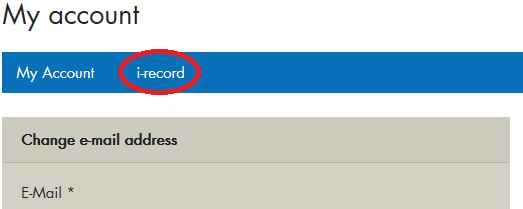
On the "My Account" page you will find the personal details. This includes e-mail address, name and address details. The link "i-record", which is located in the blue bar, takes you to the administration page of all your license pools.
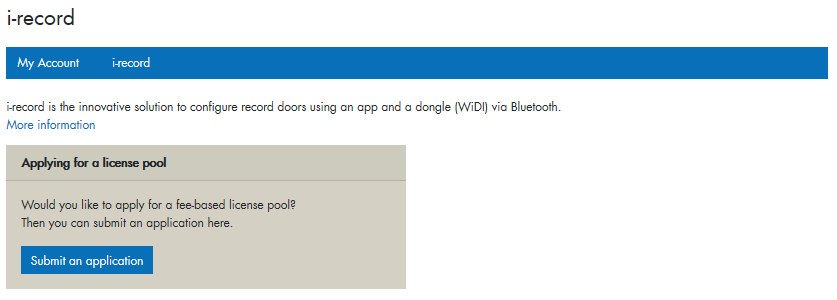
On the "i-record" page that now opens, you can see your own existing license pools and all open license pool requests. You can also request a new license pool on this page.
Application for a License Pool
In order for an organisation/company to use i-record for the configuration and maintenance of record doors, a fee-based licence pool must first be applied for from the record country organisation. There are two different ways to apply for a license pool:
- Directly by telephone with the responsible record subsidiary
- Online, via your own web account on https://i.record.global
In the following section we will briefly describe the license pool application via the web account:
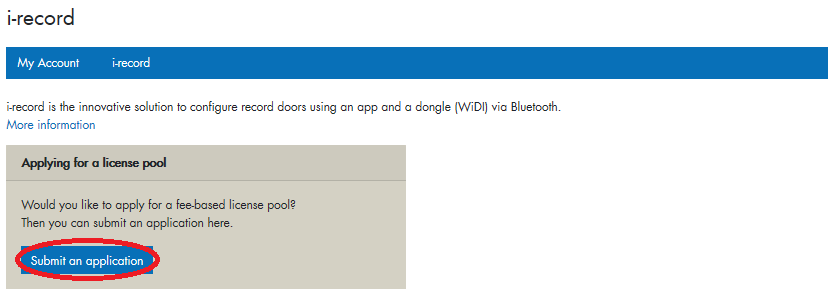
On the license pool administration page, a new fee-based license pool can be requested by pressing the "Submit an application" button.
In the opening form, all the data required for the application, such as company name, name, address, e-mail and phone number, can now be entered. The e-mail of the desired pool manager, who will later manage the license pool, must also be filled in. It is important to mention that the pool manager must also already have a valid account on the website.
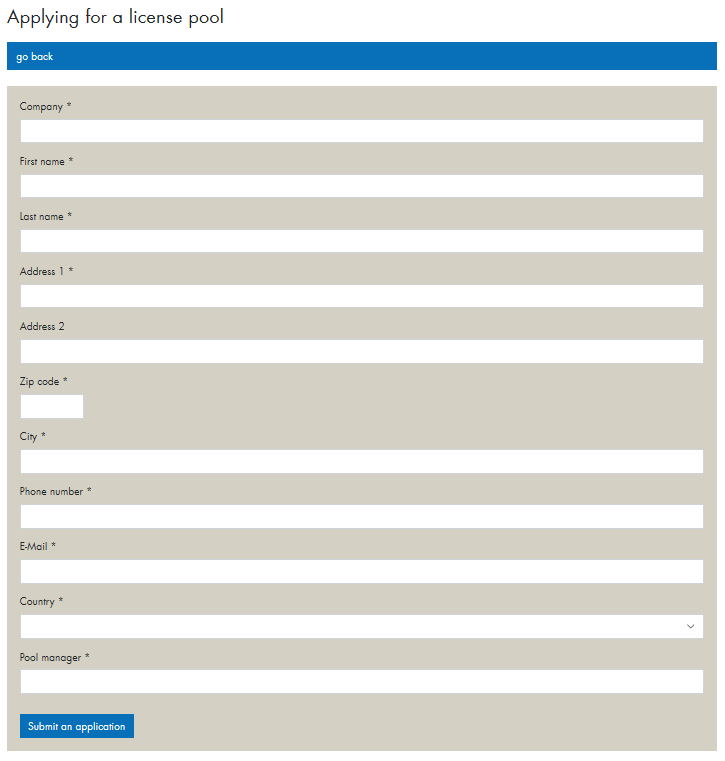
Once the form is completely filled out, it can be sent by pressing the "Submit an application" button.
record will now check the details of the application and contact you if necessary. If the application is approved, record will open a license pool. The person responsible for the license pool in the application will be entered as pool manager. This pool manager is then informed by email that the license pool has been opened. The pool manager is requested to enter the missing address data on the website. After the terms and conditions have been accepted, the payment data must be entered. Once everything has been filled in and saved, the license pool changes from the "Initialization" state to the "Active" state. The pool manager can now add users and WiDI to the license pool.
Management of a License Pool
The license pool is managed by the pool manager. The pool manager is the person responsible for i-record in an organisation/company. He can add users and WiDI to the license pool and remove them from it.
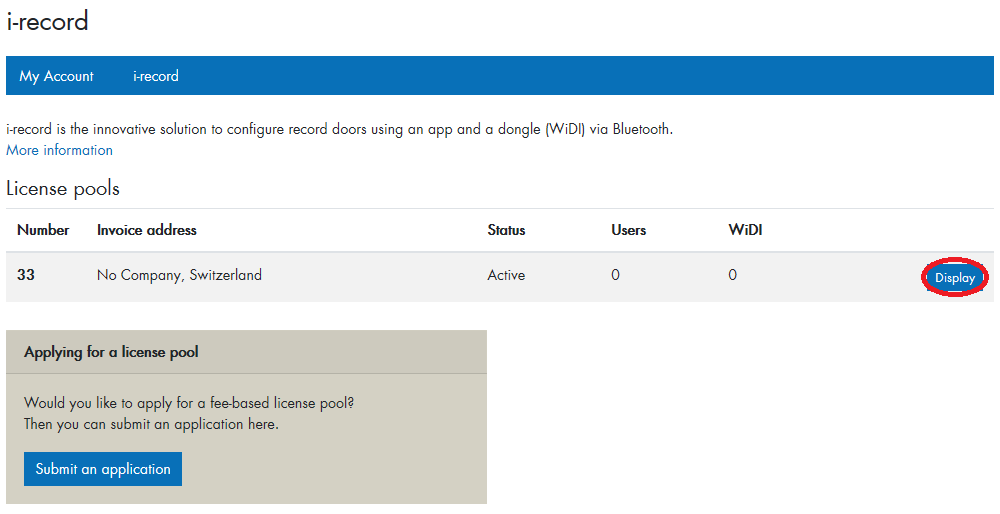
After the pool manager has logged in on https://i.record.global using e-mail and password, he has access to the license pool via his web account. As described above, the link "i-record" can be used to display an overview of all license pools assigned to him. The table "License Pools" shows the license pool number, billing address, status and number of users and WiDI assigned to the license pool. To view the details of a license pool, click on the blue "Display" button.
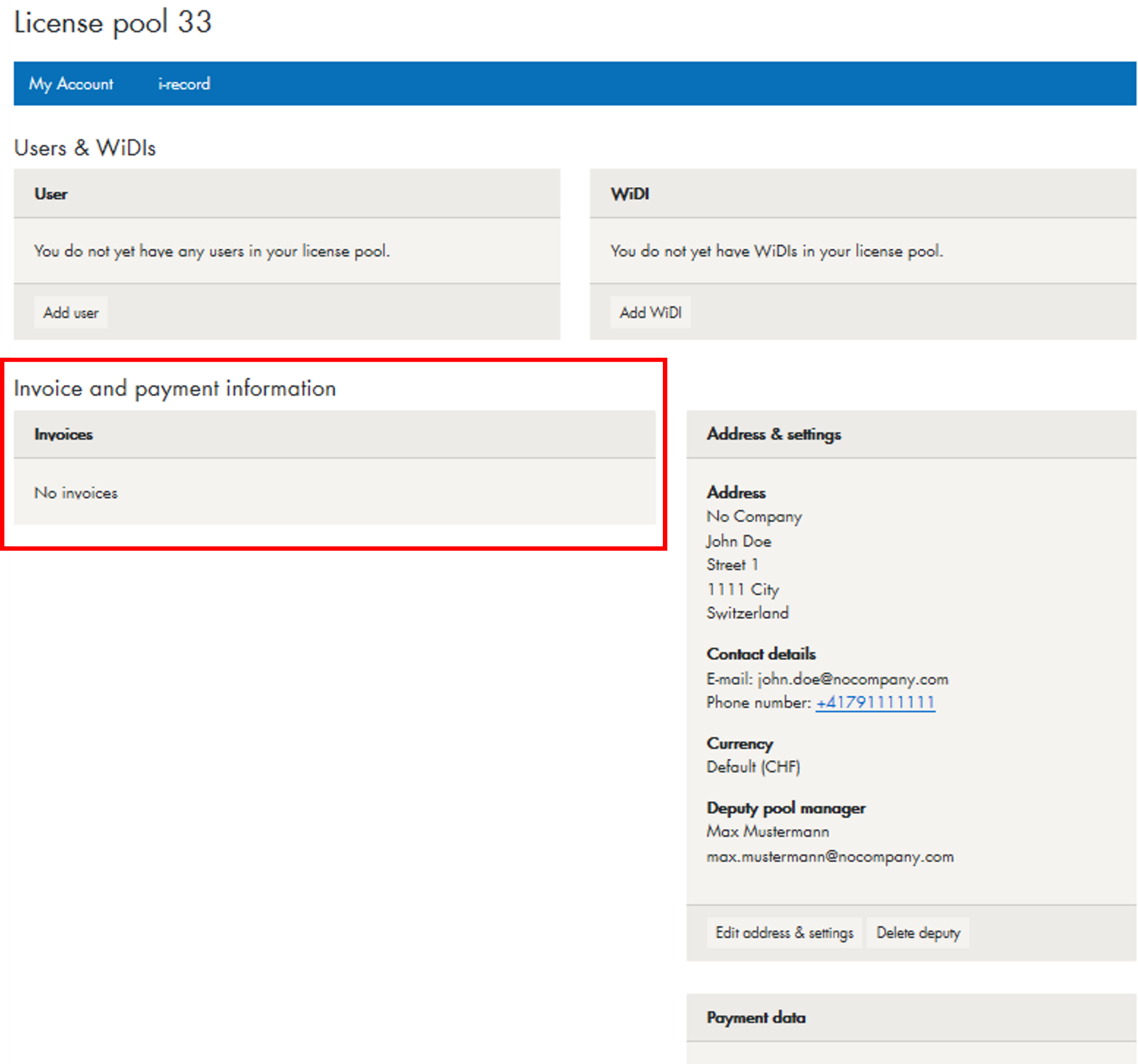
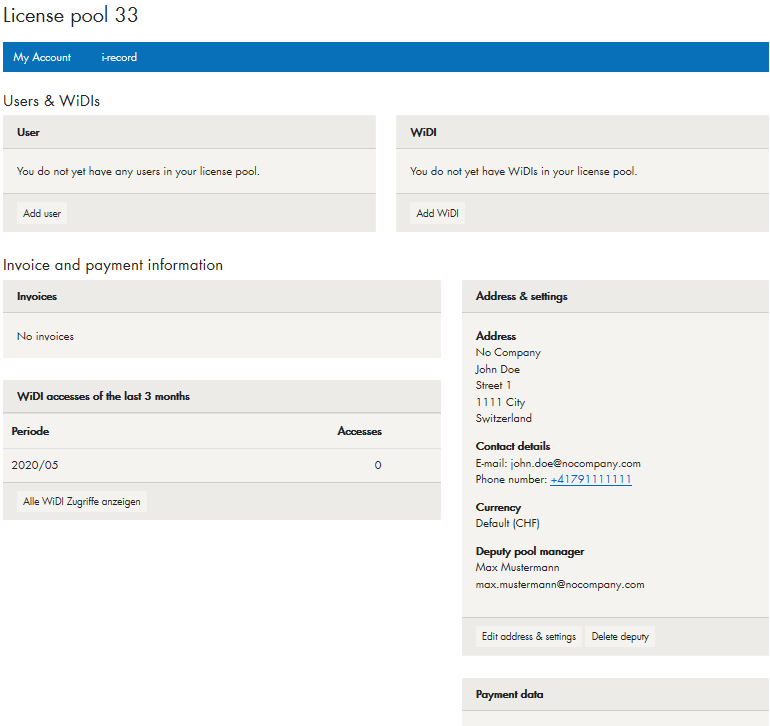
Here you can see the data of the specific license pool. First, all users and WiDI added to the license pool are listed. Further down are the billing and payment information of the pool. This includes contact and payment information, an overview of the last monthly billing, and monthly statistics on the number of door accesses per user/WiDI.
Adding a user
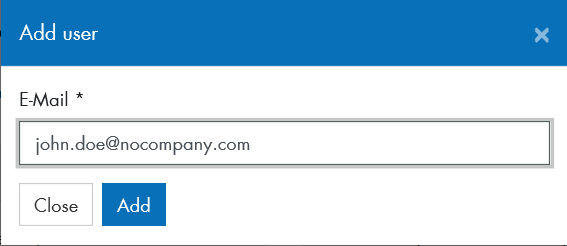
To add a user, press the "Add user" button below the user table.
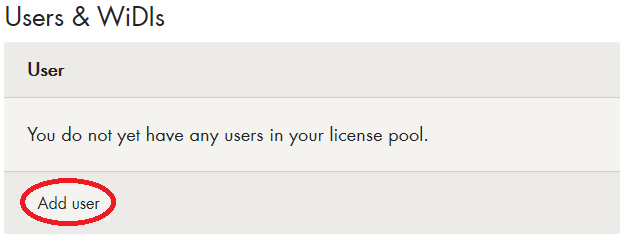
In the window that now opens, the user's e-mail address can be entered.
Important: The user must already have an account on https://i.record.global. In addition, the user must only belong to one license pool at a time. If the user is already part of another license pool, an error message will appear when trying to add the user to the new license pool.
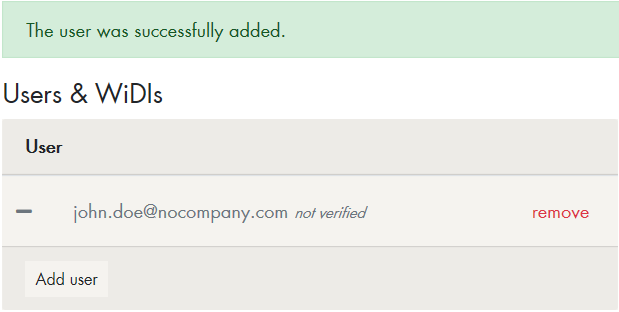
The user's e-mail address is now visible in the user list. The user has not yet been verified by record. As long as this is not the case, the user cannot use i-record.
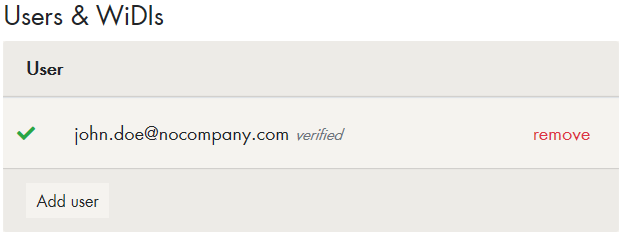
As soon as the user has been verified by record, the pool manager receives a confirmation by e-mail. In the table, the user now has a green check mark and the remark "verified". The user can now log on to the record server via the application and is now able to configure record doors.
Removing a user
To remove a user from the license pool, the link "remove" can be clicked in the user list. After confirming this action, the user is immediately removed from the license pool. He can no longer connect to the record server to receive new, updated licenses.
Adding / removing a WiDI
In order to assign a WiDI to a license pool, it must not already be assigned to another license pool. In addition, the WiDI must be valid (not registered as stolen or lost) in order to add it to the license pool. The process of adding and removing a WiDI is similar to the process for the user. Again, record has to verify the new WiDI before it can be used for i-record.
Adding a deputy
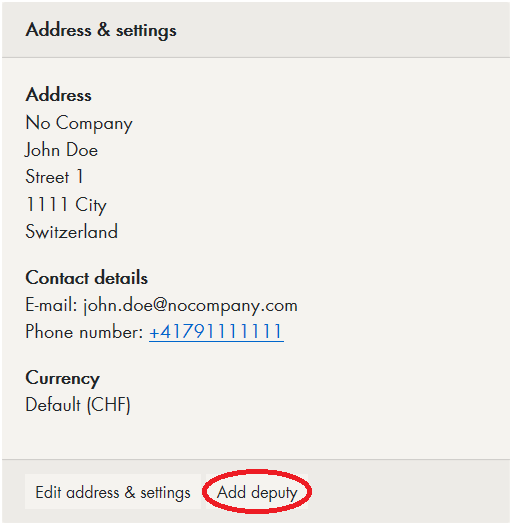
The pool manager can add a pool manager deputy for the license pool. This deputy has the same rights as the pool manager and can therefore manage the license pool in his or her absence. To do this, click on "Add deputy" below the address details. The e-mail address of the deputy, who has already registered himself on https://i.record.global, can then be entered in the window that opens. The deputy can then access the license pool via his or her own web account.
Accessing i-record invoices
The pool manager has access to all i-record invoices created to date via the administration page of their license pool. The 3 most recent invoices are listed under “Invoice and payment information.” If you click on ‘display’ for the respective invoice, the invoice will open as a PDF document. If you want to download older invoices, you can click on “Show all invoices” to view all i-record invoices created for this license pool.